Skip to navigation
Skip to navigation
Skip to search form
Skip to login form
Skip to main content
Skip to accessibility options
Skip to footer
Skip accessibility options
Reset settings
Close
Accessibility profiles
Visual impairment
Seizure and epileptic
Color vision deficiency
ADHD
Dyslexia
Learning
Content adjustments
Readable font
Dyslexia-friendly font
OpenDyslexic
Highlight headings
Highlight links
Highlight buttons
Hide images
Tooltips
Stop animations
Text size
+
+ +
+ + +
Line height
+
+ +
+ + +
Text spacing
+
+ +
+ + +
Color adjustments
Dark contrast
Light contrast
Invert colors
Change colors
High contrast
High saturation
Low saturation
Monochrome
Orientation adjustments
Reading guide
Reading Mask
Big black cursor
Big white cursor
Search
Log in
Register
Log in to Soft Skill
Create new account
Categories
Compliance
Productivity
Self Development
Art of Communication
Human Resource
Problem Solving
Art of Management
Customer Relations
Knowledge Management
Professionalism
Quality
Selling Skills
Process Improvement
Learning Games
Explore Library
Pricing
Resources
Documentation
Blogs
Contact Us
AI Tool Administration
Whatsapp
Search
Log in
Register
Course Management
Home
Site pages
KnowxBox Documentation
Book
Print book
Print this chapter
More
KnowxBox Documentation
Completion requirements
5. Course Management
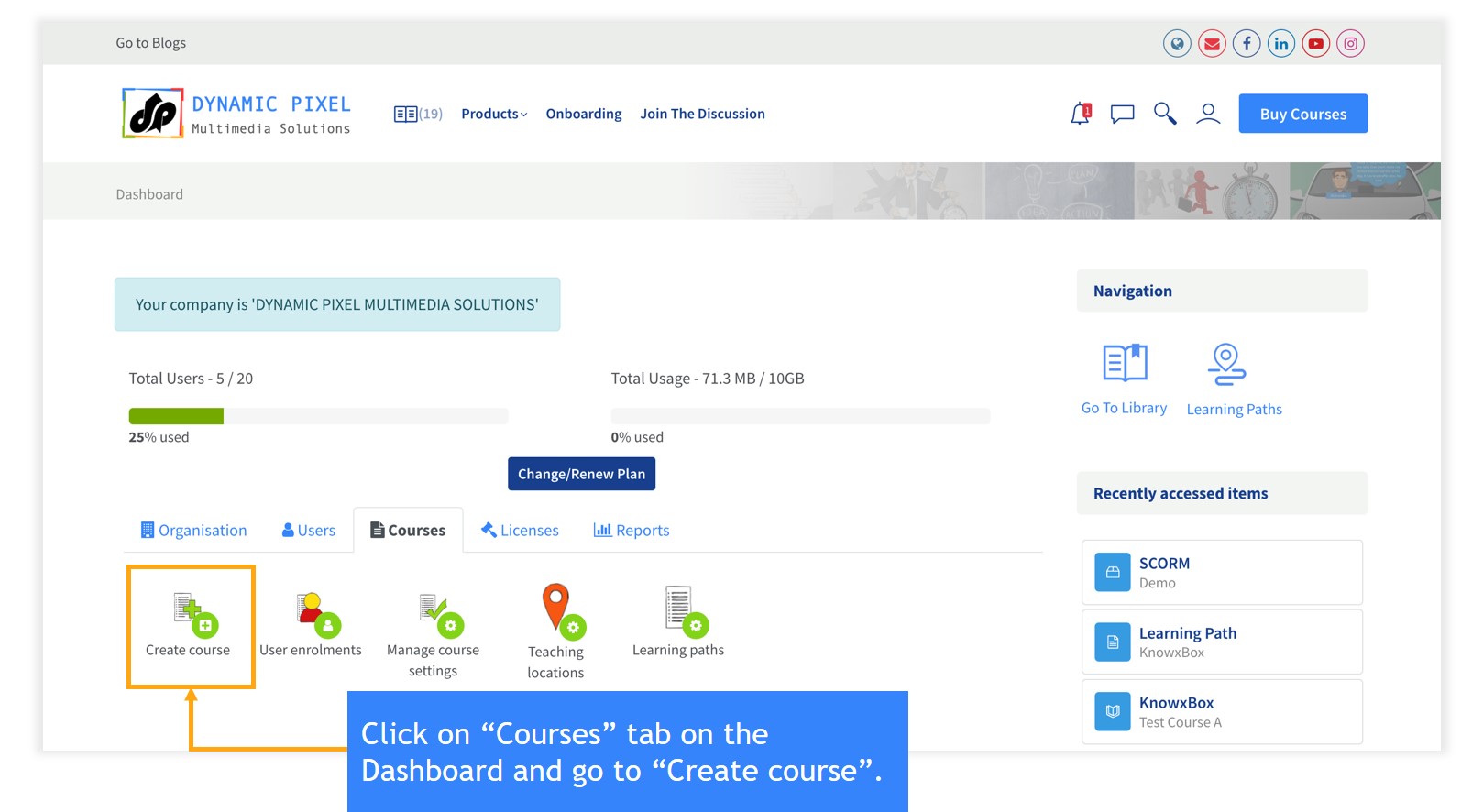
A. Create Course
Dashboard < Courses < Create Course
Create your own course.
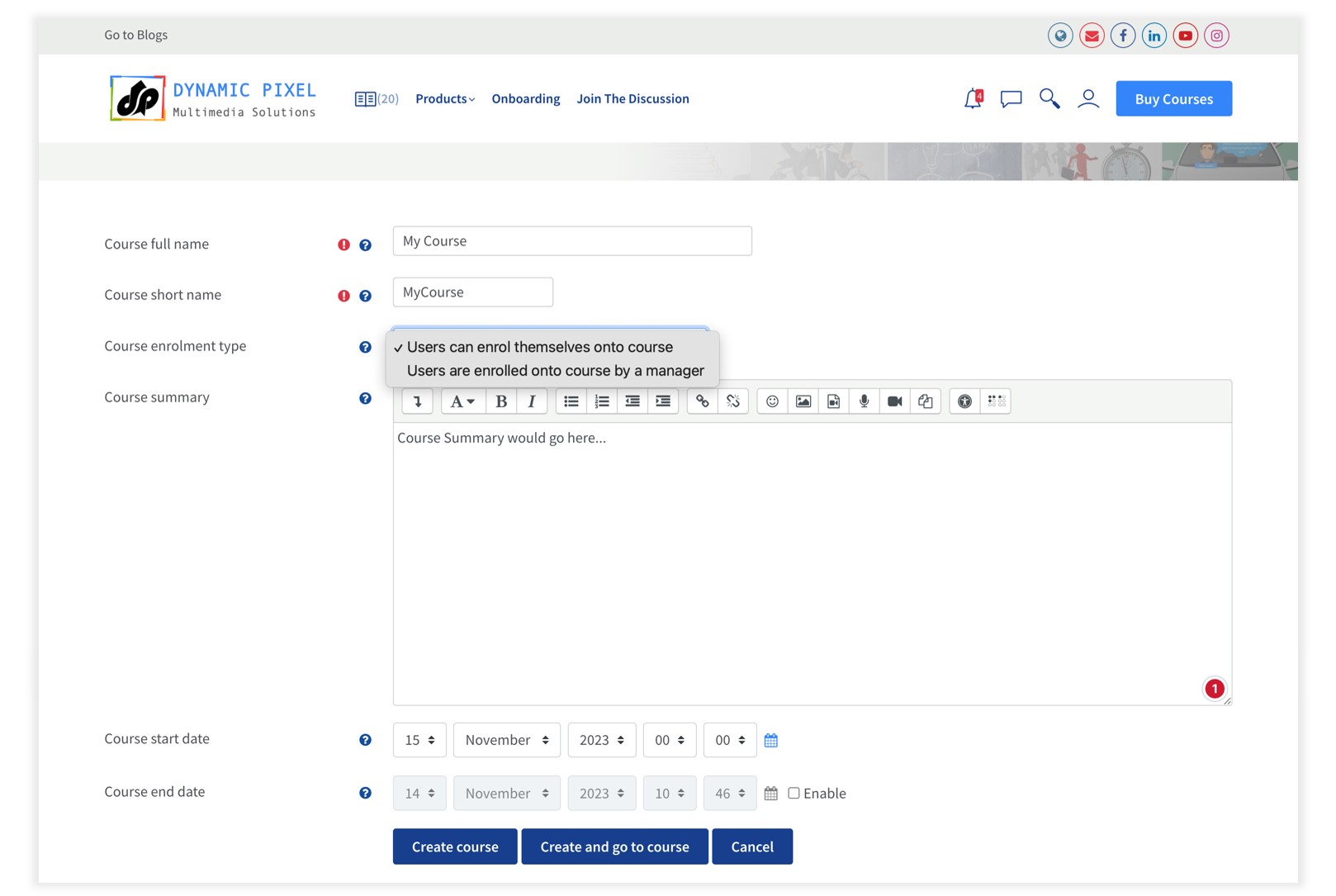
Edit course start and end date.
The person who creates the course is the “Course educator” who has the right to edit the course.
These following are the fields that are required to create a course.
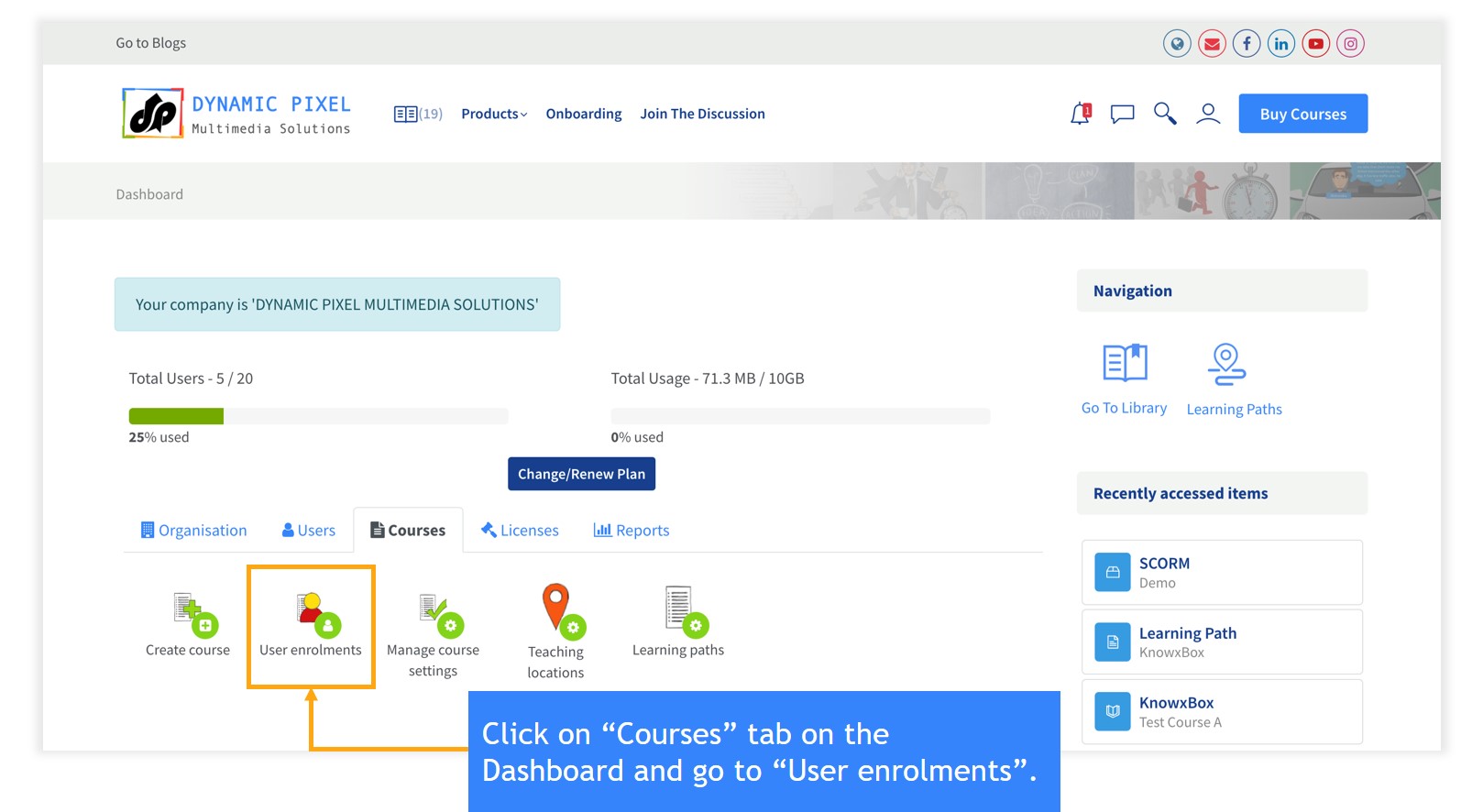
B. User Enrolments
Dashboard < Courses < User Enrolments
Assign courses to users.
Select the course in which you would like to enroll the user.
Select the date of the course enrollment email that is sent to the users.
Easy way to enroll and unenroll the users by clicking on “Select” and “Enro
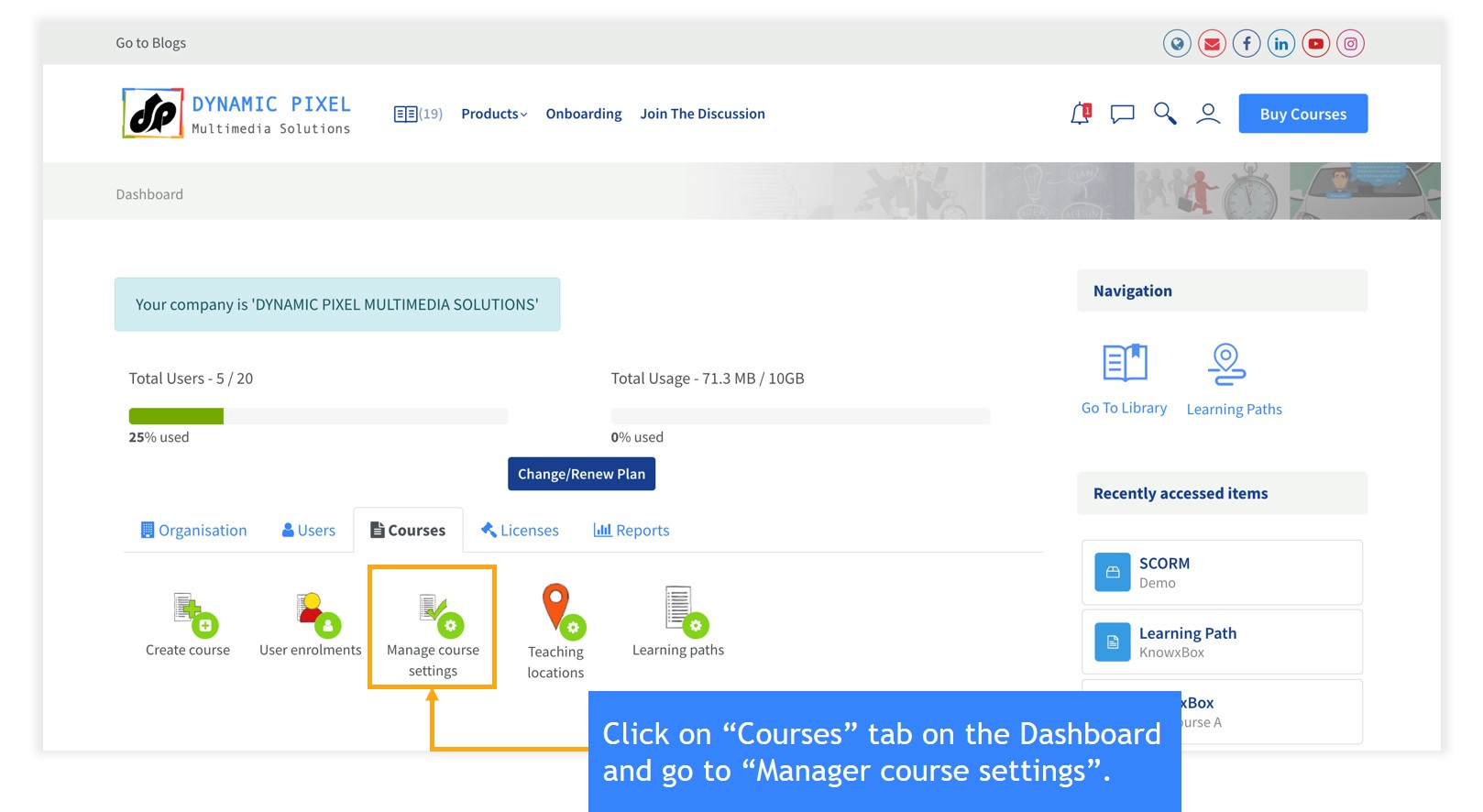
C. Manage Course Settings
Dashboard < Courses < Manage Course Settings
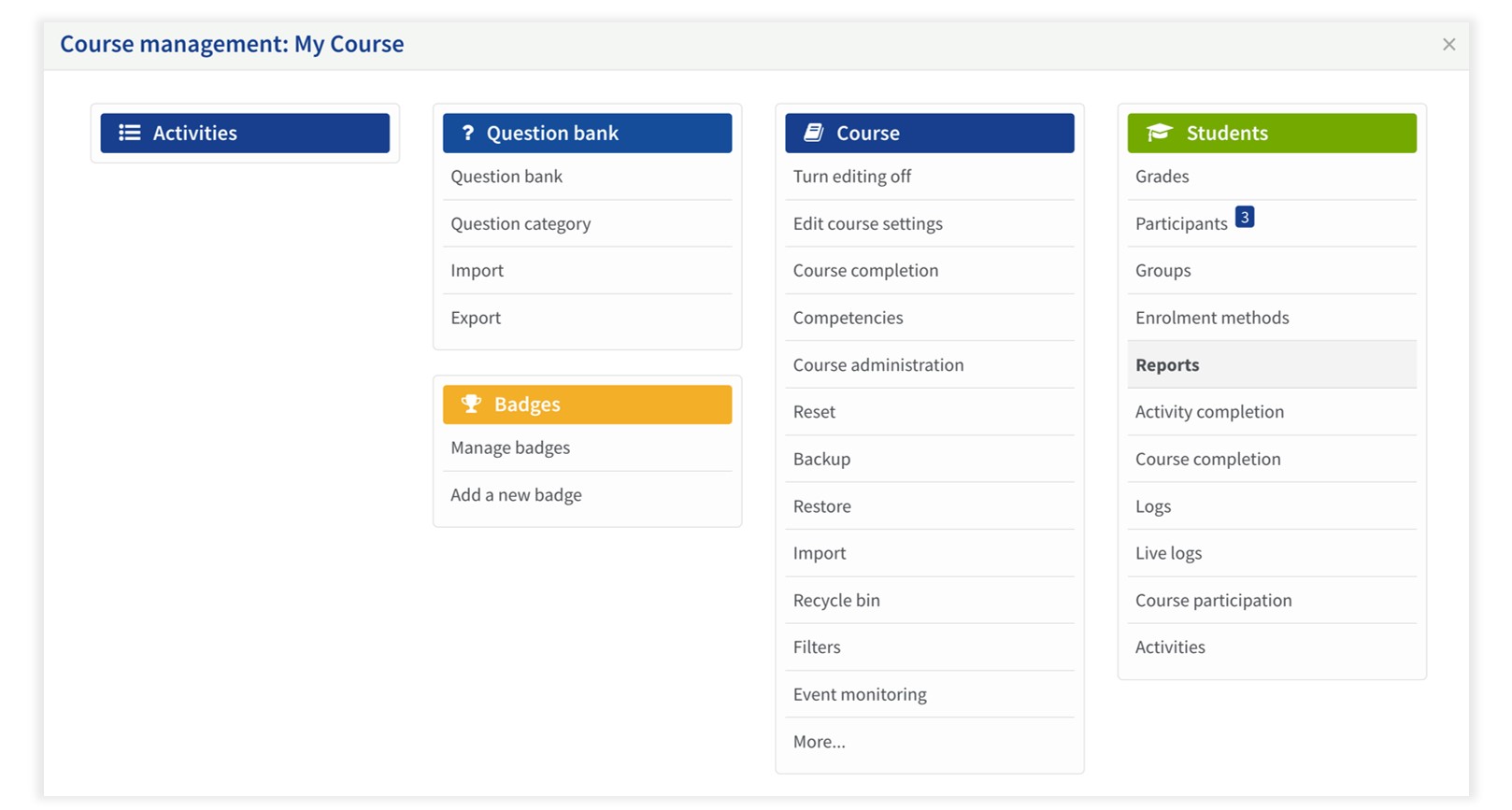
The course educator can edit the course by clicking on “Turn editing on”.
Find all your courses in one go.
Search by course name.
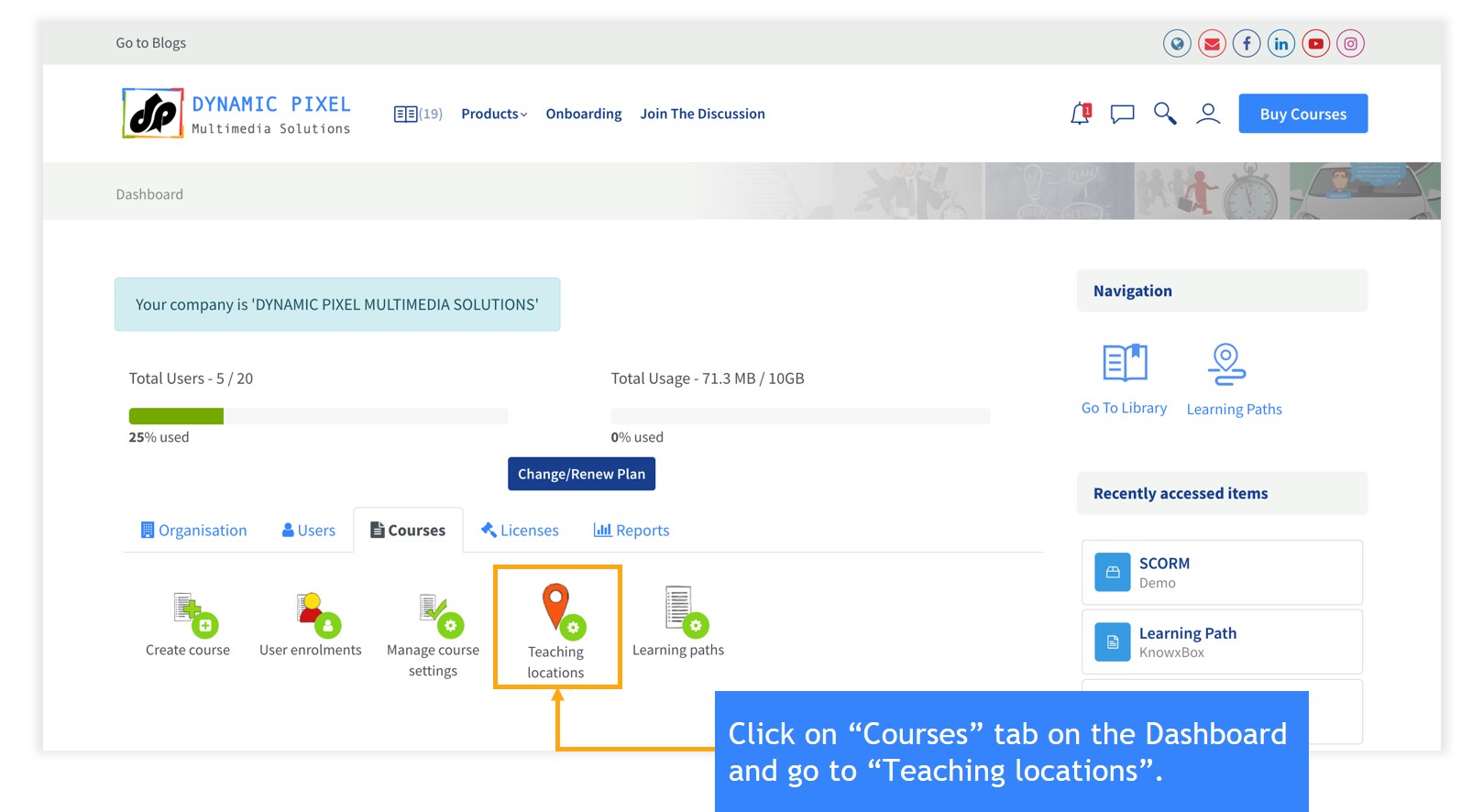
D. Teaching Locations
Dashboard < Courses < Teaching locations
Let your learners know about the training locations available to them.
Note that you have to add a location before creating a training event.
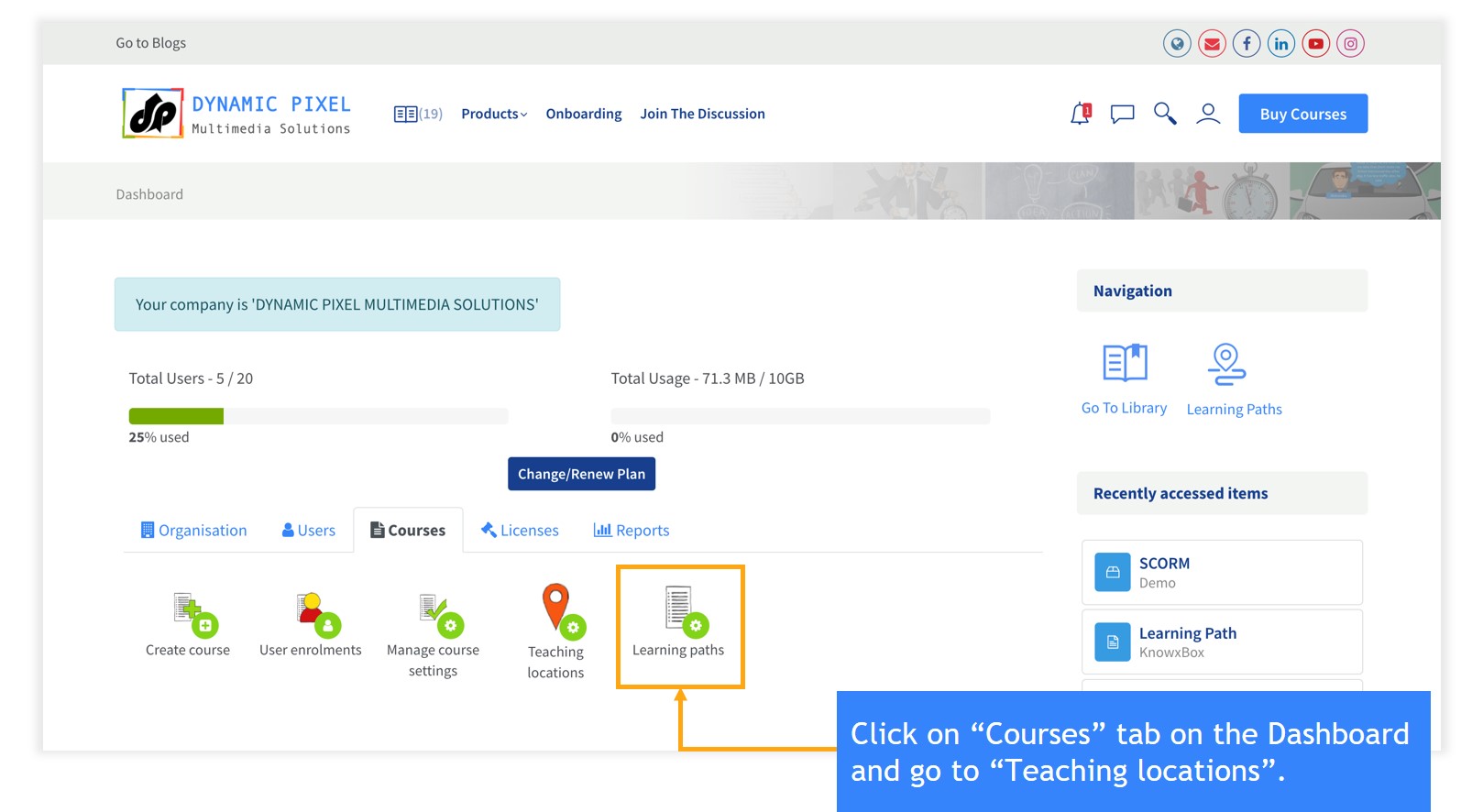
E. Learning Paths
Dashboard < Courses < Learning Paths
Users can create their own learning path.
Previous
Pricing
Next
Site announcements
Whatsapp
Scroll to top
×
Close